

Chrome Extensions:
1. Mote for Audio Comments
2. Bitly for Link Shortening:
3. Nimbus for better Screen Captures
4. Grade Transferer to copy from Classroom to Powerschool
5. Drag n' Drop Activities
6. Virtual Field Trips
==============================
1. Mote for Audio Comments:
You can quickly record audio feedback within Google Docs, Slides, or Google Classroom (as private comments) using the Mote Chrome Extension. It will automatically create a link within the comment where students can listen to the recording (no login needed for students) AND will transcribe your audio to text in the comment.
You can quickly record audio feedback within Google Docs, Slides, or Google Classroom (as private comments) using the Mote Chrome Extension. It will automatically create a link within the comment where students can listen to the recording (no login needed for students) AND will transcribe your audio to text in the comment.

2. Bit ly for Link Shortening:
Set up an account using your Google login at bit.ly, then use the Bitly Chrome Extension to quickly shorten and customize links to a site or doc you are at. This is especially useful for those long Google Docs links, links that you want people to remember or be able to type in, or to just save space. For example, bit.ly/
You can even bitly the "/present" or "/copy" version of a Doc (see this slide for an explanation on that) to force people to get a specific view of the Doc/Slide, like i did with the the Meet info for parents at bit.ly/MeetStudentsMMS.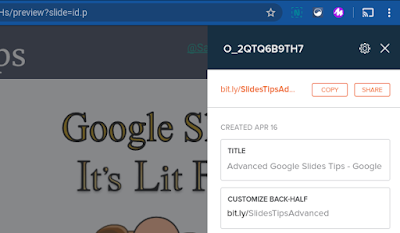
3. Nimbus for better Screen Captures:
While your Chromebook has screen capture functionality, you may like the expanded functionality and ease of use of the Nimbus Chrome Extension. Try out the features, which include screenshotting the entire webpage (even the part not visible on your screen), editing the screenshots, and even a screen recorder.


4. Grade Transferer to copy grades from Classroom to Powerschool:
More quickly and efficiently copy gradebook data from Google Classroom into Powerschool using the Grade Transferer Chrome Extension. They have a video demonstrating how to save time with this tool.

5. Drag n' Drop Activities:
Shout out to Nick (Drawings) and Lisa E. (Slides) at D83 for using Google tools to create Drag n' Drop activities for students. By sharing them in Classroom "Make a Copy for Each Student," each student gets an editable interactive. Here's Nick's example in Drawings:

^Follow Mr. Leonardi on Twitter for more!^
6. Virtual Field Trips:
I previously shared how students can go on self-paced Google Expeditions from home, but there are a few other ideas for virtual field trips:
- Google Arts & Culture
- Google Museum Virtual Reality Tours
- Google Earth
- Google Lit Trips
- Explore.org (Ok that's not really a field trip, but who wouldn't want to watch live webcams of Pandas, Eagles, and puppies in their natural habitats?)
==============================
Hope you find these helpful!
Hope you find these helpful!


